
- Search
- Riyadh26 ° C


iOS System Repair: How to Fix Common iPhone & iPad Issues Without Data Loss

Introduction
Getting stuck on the Apple logo or freezing during an iOS upgrade can be frustrating and terrifying if you're worried about losing data. People think wiping their phones clean fixes major iOS difficulties, but not always. Repairing your system without losing photographs, texts, or app data is possible with the appropriate tools.
There are safe ways to fix your iPhone stuck in Recovery Mode, an iPad screen that is unresponsive, or repetitive restarts. This guide will explain the most frequent iOS faults, how they occur, and how to fix them without losing data using the Dr.Fone iOS System Repair tool.
Common iOS Issues That Require System Repair
iPhones are powerful, yet they may malfunction. When traditional troubleshooting fails, iOS system repair may be safer. Here are some frequent issues that necessitate it:
- Your iPhone stalls on the Apple logo during startup, never reaching the home screen.
- A phone restarts without launching iOS.
- Despite charging, the screen remains blank or unresponsive.
- Despite a functional charger, the iPhone won't turn on.
- Finder and iTunes update/restore errors occur.
- Crashes, lag, and abrupt app closings.
- The camera, Face ID, Wi-Fi, and Bluetooth may malfunction on iOS.
A good repair tool can fix these without losing data.
Why iOS Updates Fail and Lead to System Problems
The new iOS update is usually smooth, but various things can cause it to fail and cause system issues.
- Low storage is a common reason. iOS updates require temporary file storage, so if your device's storage is nearly full, the update may halt midway, causing system instability.
- A weak or irregular internet connection could impede the process. Missing connections can cause incomplete downloads or corrupt major update installation files.
- Charger or battery issues may cause issues. If you don't charge above 50% or disconnect power during the upgrade, boot loops or freezes may occur.
- Current iOS software incompatibilities or vulnerabilities can create installation issues.
Recommended Solution: Dr.Fone iOS System Repair
Without losing data, Dr.Fone - System Repair (iOS) addresses 150+ iOS and iPadOS issues like black/white screens, boot loops, Apple logo freezes, iPhone not turning on, update failures, and more. You may upgrade or downgrade iOS 26 Beta without iTunes or jailbreak. At home, anyone can securely fix their iPhone or iPad with a high success rate, 24/7 support, and a simple interface.
Why Choose Dr.Fone?
- Fix over 150 iOS bugs without deleting data.
- Upgrade or downgrade iOS securely.
- Enter and exit Recovery Mode and DFU Mode freely.
- Factory reset iPhone without password or iTunes.
How to Repair the iOS System
Step 1. Select "System Repair" in Dr.Fone and connect your iPhone/iPad to your PC.
.jpeg)
Step 2. Select "Standard Repair " for your device type saves all data.
Step 3. Follow the on-screen instructions to enter "Recovery Mode."
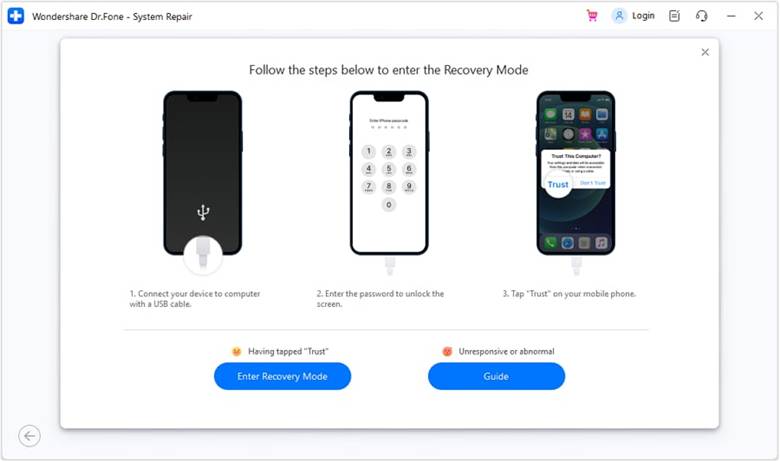
Step 4. Dr.Fone finds compatible iOS firmware. Click "Download" and wait for verification.
.jpeg)
Step 5. Click "Repair Now." Please keep track of the progress until it is complete, then click "Done" to conclude the iOS repair.
.jpeg)
Other Methods to Repair iOS Without Data Loss
Try these safer, no-data-loss methods when your iPhone or iPad has minor faults or a full repair tool isn't available:
- Force Restart iPhone/iPad (Safe for Minor Glitches)
Force restarts solve frozen or unresponsive devices without deleting data. Follow these instructions:
iPhone 8 and later (Face ID):
- Press and release Volume Up quickly.
- Press and release Volume Down quickly.
- Press and hold the Side button until the Apple logo appears, then release.
![How to Force Restart iPhone [All Models] [2025] - TechPP](/news_images/2025/09/image(4).jpeg)
iPad without Home button:
- Press and release the top volume button quickly.
- Shortly push and release the bottom volume button.
- Hold the Top button until the Apple logo shows.
These restarts are perfect for minor system issues and won't erase data.
- Update iOS via iTunes/Finder.
Computer updates often fix update errors and save data. Follow the steps:
- Connect your device to Finder, macOS Catalina+, or iTunes.
- When prompted, select "Update," not Restore. This protects your apps and data during iOS reinstallation.
- To resolve errors, delete the partially downloaded update (via Settings > General > Device Storage) and retry the upgrade.
- Check Network and Storage Before Retrying Update
Update issues often include connectivity and space. Let’s see how:
- First, check your Wi-Fi network as weak or inconsistent connections can hinder downloads.
- In "Settings > General > iPhone Storage," delete unnecessary apps to free up space. This simplifies updates.
.jpeg)
- Reset settings without deleting content.
If system behaviors are off but hardware works, reset settings. Follow the steps:
- Hit "Settings > General > Transfer or Reset iPhone."
- Select "Reset" then "Reset All Settings."
When to Consider Advanced Repair (With Data Loss)
- Advanced repair should only be undertaken if regular troubleshooting fails. This method erases all personal data, apps, and settings when reinstalling iOS.
- It is usually needed for serious system damage, including boot loops, frozen Apple logo screens, or major update failures.
- Perform a full iCloud or iTunes/Finder backup before restoring data.
- Advanced repair is irreversible and should be used last for deep-rooted issues. To avoid incomplete installations and iPhone software update failed warnings, use a consistent power source and internet connection.
Preventing Future iOS Problems
Regular iCloud or iTunes backups defend against iOS issues. Charge, backup, and confirm compatibility before updating your iPhone or iPad to the latest iOS version. Unauthorised programs and jailbreaking may damage security.
Check battery health, close unneeded apps, and eliminate unused files. These preventive measures can considerably reduce system errors and save you money and time.
Conclusion
The right method can fix most iOS system issues, from minor malfunctions to serious corruption, without losing data. Use safe, standard repair methods before trying sophisticated ones. Dr.Fone - iOS System Repair can efficiently fix various issues while safeguarding personal files.
Advanced repair should be a last choice when everything else fails, and backups are essential. Your device may work smoothly with regular updates, smart storage management, and no harmful apps. You can keep your iPhone or iPad functioning properly for years with repair and preventive care.


HONOR LAUNCHES THE PORTABLE HONOR CHOICE PROJECTOR AIR PRO, EXPANDING ITS SMART ENTERTAINMENT PORTFOLIO
Tuesday 15 September, 2026 10:05
Saudi-Egypt trade exchange hits SAR 444B in 10 years
Tuesday 15 September, 2026 6:22
Money20/20 Middle East Day Two Sees Landmark Saudi-Qatar Payments Agreement as Major Fintech Investment and Expansion Announcements Continue
Wednesday 16 September, 2026 11:59
Bahri completes SAR 986M refinancing agreement
Tuesday 15 September, 2026 6:13